
NVIDIA Jetson AGX Devkits#
Introduction#
This guide provides detailed instructions for assembling the FSM:GO modules onto the Nvidia Jetson AGX Xavier/Orin Development Kits using the FPA-4.A/AGX interface.
Pre-assembly Information#
The FSM:GO sensor module is typically pre-assembled with a standard lens mount and the lens of your choice.
1. Add an M12 lens mount (optional)#
Prior to assembling the FSM to the FPA, screw an optional M12 lens mount to the FSM.
Fitting screws are provided with the lens mount. If assembling a third-party mount, refer to the technical drawings for the specific module to confirm hole diameters and select the appropriate screws.
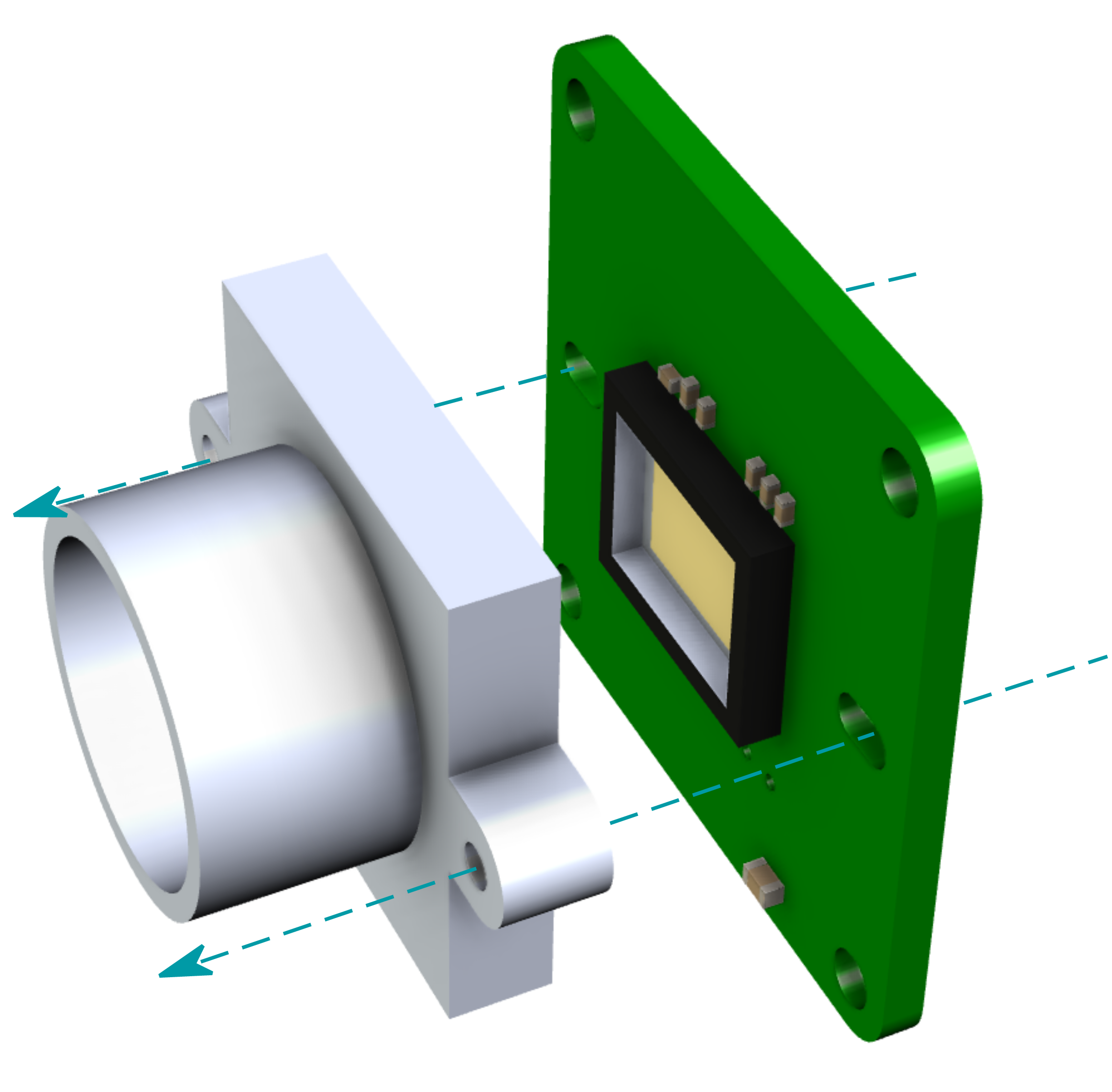
Note
The FSM:GO sensor module is shipped pre-assembled with the default lens mount and lens.
If change is needed, refer to the M12 Lens Kit User Guide for detailed instructions on changing the mount.
2. Add Flex Cable (optional)#
Connect the rear side of the FSM:GO module to the appropriate side of the FMA-FC-150/60 flex cable by pressing the two 60-pin pixelmate connectors together. Do the same with the other end of the cable and the FPA.
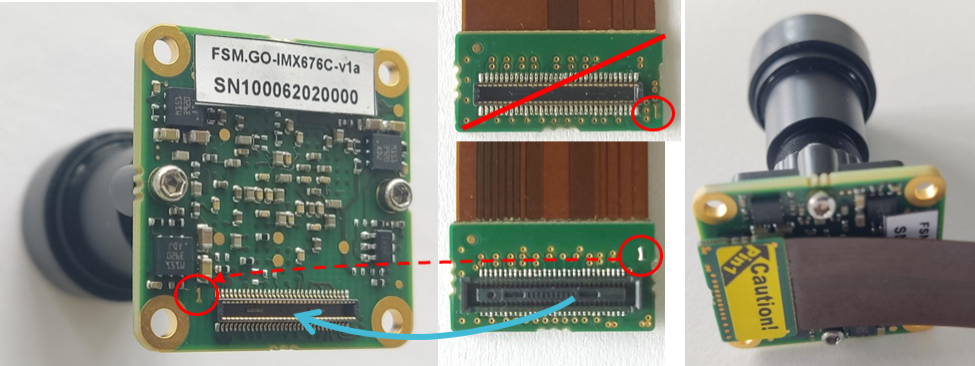
Note
Always ensure that the lens mount is securely fastened to prevent any movement during operation.
Assembly Instructions for Different Cabling Solutions#
Connecting the FSM:GO module to the Nvidia Jetson AGX Xavier/Orin via the FPA-4.A/AGX interface can be achieved through various cabling options, each suited for different application needs. Below are detailed instructions for each cabling solution.
Scenario 1: PixelMate™ Flex Cable Connection#
Requirements
FSM:GO module
FMA-FC-150/60 Flex Cable
FPA-4.A/AGX Interface
Step 1: Connecting the Flex Cable to the FSM:GO Module#
Orientation Check: Identify pin-1 on both the FSM:GO module and the FMA-FC-150/60 flex cable. This is crucial to ensure correct alignment and functionality.
Connection: Align the 60-pin PixelMate connectors on the FSM:GO module and the flex cable. Carefully press them together until they are securely connected.
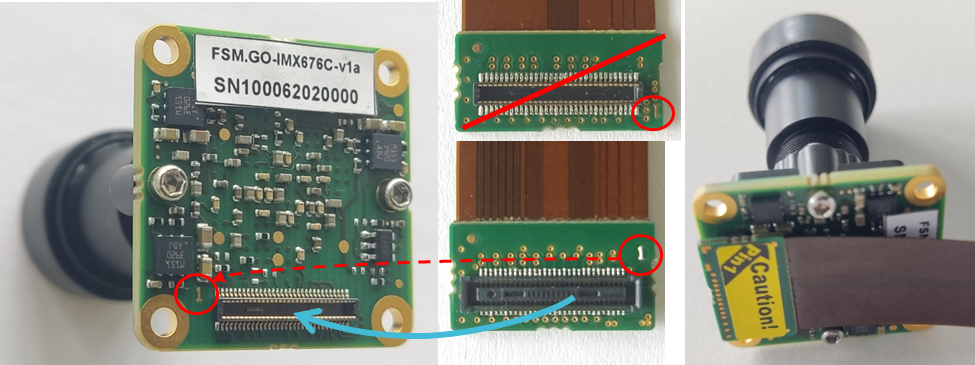
Connecting the flex cable to the FSM:GO module.#
Step 2: Connecting the Flex Cable to the FPA-4.A/AGX#
Connection: Attach the other end of the FMA-FC-150/60 flex cable to one of the sensor connectors on the FPA-4.A/AGX.
Multiple Modules: Up to four FSM:GO modules can be connected to the FPA-4.A/AGX using additional flex cables.
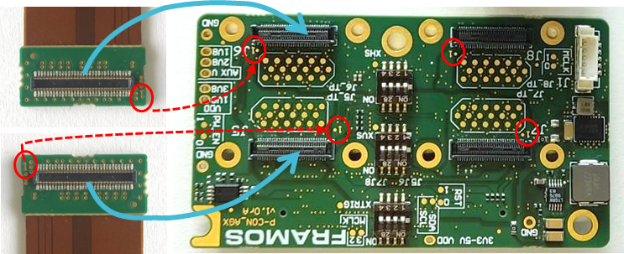
Connecting the flex cable to the FPA-4.A/AGX.#
Note
Before connecting the connectors, verify correct orientation to avoid permanent damage. The connectors are correctly oriented when the “1” markings on their faces, which indicate pin-1 on each connector, mirror one another.
Scenario 2: FFC Cable Connection#
Requirements
FSM:GO module
FFA-FFC40/Kit-0.2m-v1a
FMA-FC-150/60 Flex Cable (optional)
FPA-4.A/AGX Interface
Step 1: Preparing the FFA-FFC40/Kit (Optional)#
The FFA-FFC40/Kit typically ships with the FFC cable already preassembled with the appropriate adapter boards.
- If not pre-assembled: Manually attach the FFC cable to the adapter
boards. Ensure the connectors are fully seated and secure.
- Visual Check: Refer to the provided image to confirm proper
connection.
Step 2: Connecting the FFA-FFC Adapter to the FSM:GO Module#
Orientation Check: Align the 60-pin PixelMate connectors of the FFA-FFC adapter (sensor side) and the FSM:GO module. Match pin 1 on both connectors to ensure correct orientation.
Connection: Press the connectors together firmly until they are securely engaged.
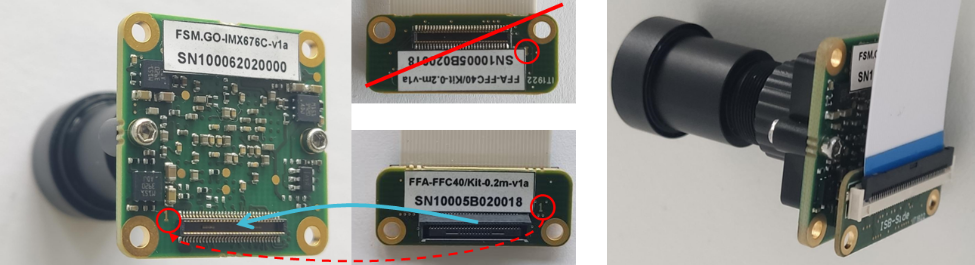
Connecting the FFA-FFC adapter to the FSM:GO module.#
Step 3: Connecting the FFA-FFC Adapter to FPA-4.A/AGX#
Orientation Check: Ensure the correct alignment of the 60-pin connectors when connecting the FFA-FFC adapter (processor side) to the FPA-4.A/AGX.
Connection: Firmly press the connectors together, ensuring they are properly aligned and locked in place.
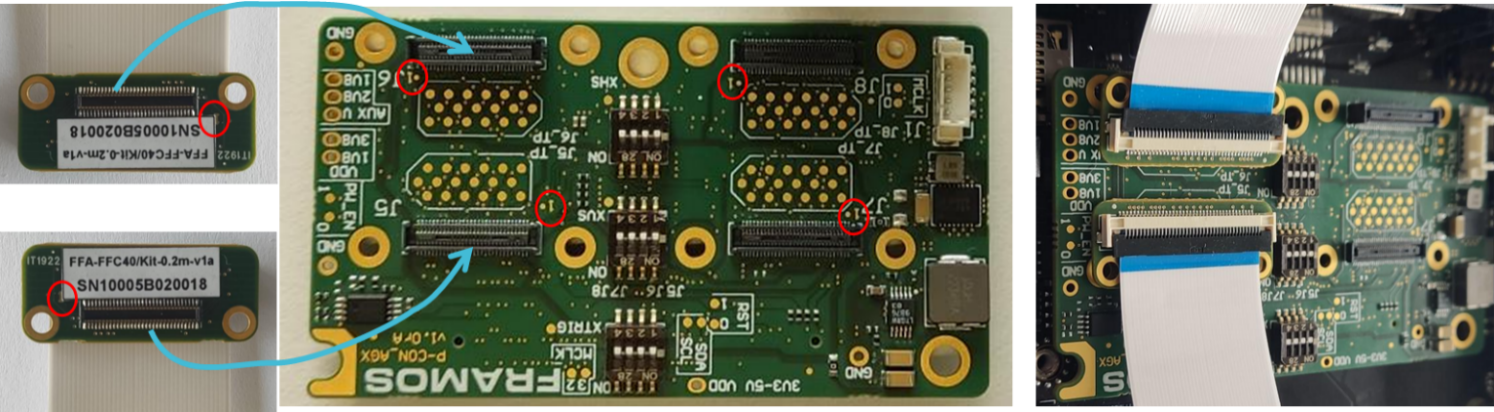
Connecting the FFA-FFC adapter to the FPA-4.A/AGX.#
Step 4: Connecting via Flex Cable (Optional)#
- Flex Cable Usage: If additional reach or flexibility is needed,
connect the FFA-FFC adapter (processor side) to the FMA-FC-150/60 flex cable, then attach the flex cable to one of the sensor connectors on the FPA-4.A/AGX.
- Secure Connection: Verify the orientation and make sure all
connections are secure.
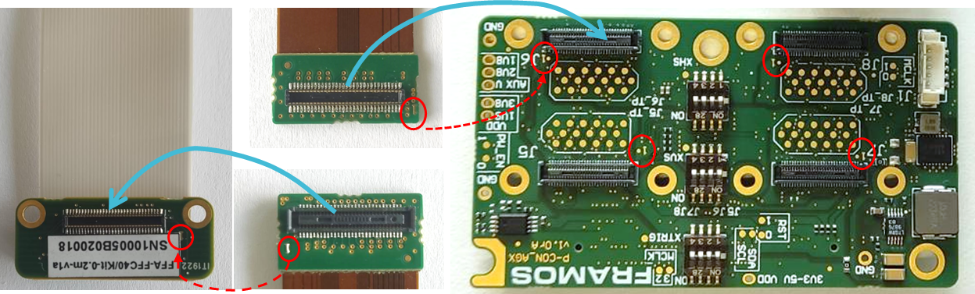
Connecting via flex cable.#
Caution
Incorrect cable or connector orientation can cause permanent damage to the hardware. Always double-check alignment before finalizing connections.
Scenario 3: Micro-Coax Cable Connection#
Requirements
FSM:GO module
FFA-MC50/Kit-0.3m-v1a
FMA-FC-150/60 Flex Cable (optional)
FPA-4.A/AGX Interface
Step 1: Preparing the FFA-MC50/Kit (Optional)#
The FFA-MC50/Kit typically comes preassembled with the Micro-Coax cable and the appropriate adapters.
- If not pre-assembled: Manually attach the Micro-Coax cable to the
adapter boards. Ensure the connectors are fully seated and secure.
- Visual Check: Refer to the provided image to confirm proper
connection.
Step 2: Connecting the FFA-MC Adapter to the FSM:GO Module#
Orientation Check: Identify pin 1 on both the FSM:GO module and the FFA-MC adapter (sensor side). Correct alignment is essential for proper functionality.
Connection: Align and press the 60-pin PixelMate connectors together until they securely engage.
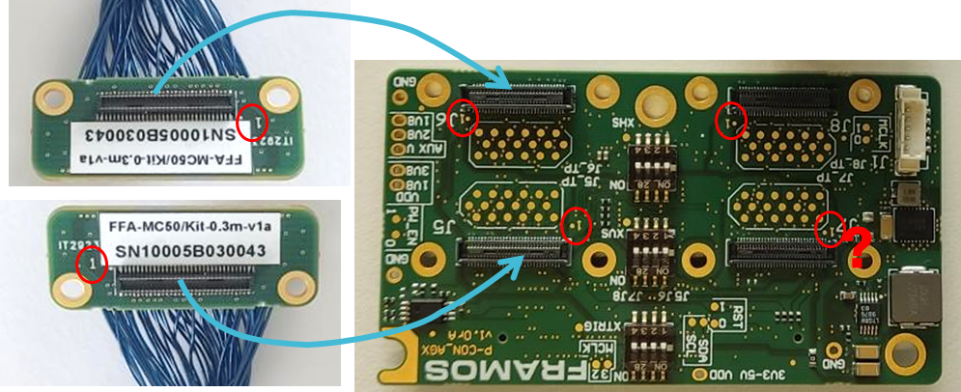
Connecting the FFA-MC adapter to the FSM:GO module.#
Step 3: Connecting the FFA-MC Adapter to FPA-4.A/AGX#
Direct Connection: Connect the FFA-MC adapter (processor side) directly to one of the sensor connectors on the FPA-4.A/AGX.
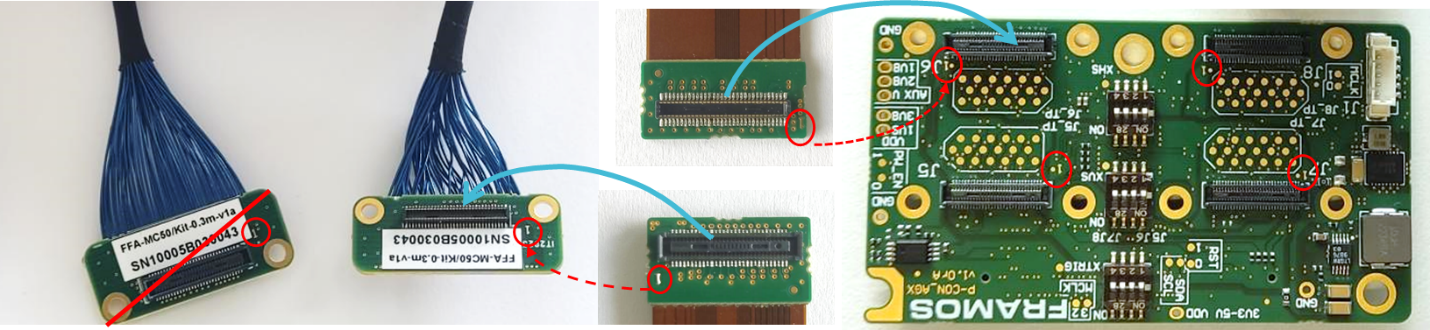
Direct connection to the FPA-4.A/AGX.#
Optional Flex Cable Usage: If additional reach or flexibility is required, connect the FFA-MC adapter (processor side) to the FMA-FC-150/60 flex cable. Then attach the other side of the flex cable to one of the sensor connectors on the FPA-4.A/AGX.
Note
Check with R&D for recommendations on using the flex cable setup based on specific application needs.

Optional flex cable connection.#
Caution
Incorrect cable or connector orientation can cause permanent damage to the hardware. Always double-check alignment before finalizing connections.
Scenario 4: GMSL Cable Connection#
Required Materials
FSM:GO module
FFA-GMSL/SerDes-Kit
FMA-FC-150/60 Flex Cable (optional)
FPA-4.A/AGX Interface
Step 1: Connecting the FFA-GMSL-Ser-V2A to the FSM:GO Module#
Orientation Check: Identify and align pin 1 on both the FSM:GO module and the FFA-GMSL-Ser-V2A to ensure proper connectivity.
Connection: Press the 60-pin connectors together firmly until they securely engage.
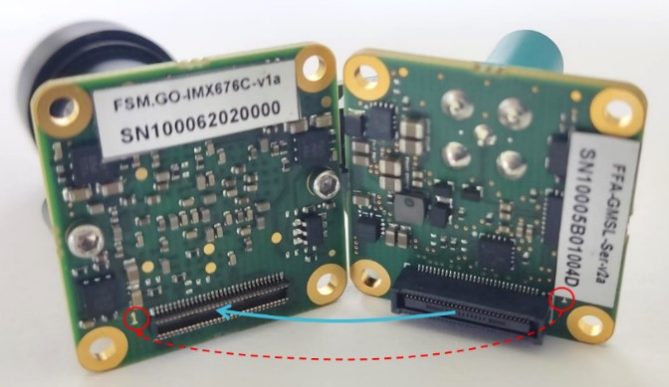
Connecting the FFA-GMSL-Ser-V2A to the FSM:GO module.#
Step 2: Connecting the FFA-GMSL-Des-V2A to FPA-4.A/AGX#
Option 1: Direct Connection
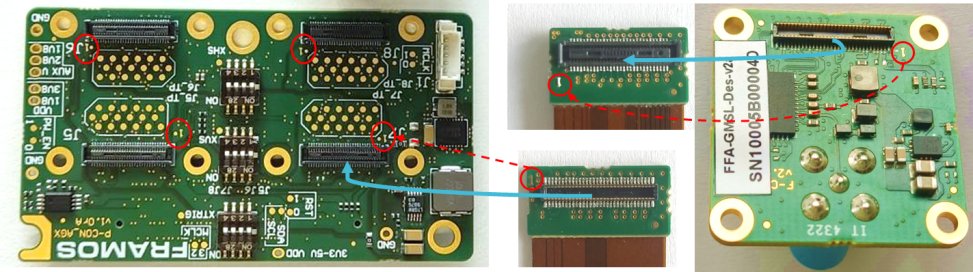
Connecting the FFA-GMSL-Des-V2A directly to the FPA-4.A/AGX.#
If additional length or flexibility is needed:
Connect the FFA-GMSL-Des-V2A to the FMA-FC-150/60 flex cable.
Attach the other end of the flex cable to a sensor connector on the FPA-4.A/AGX.
Note
Verify with R&D about the suitability of using direct connections versus the flex cable based on the specific system configuration.
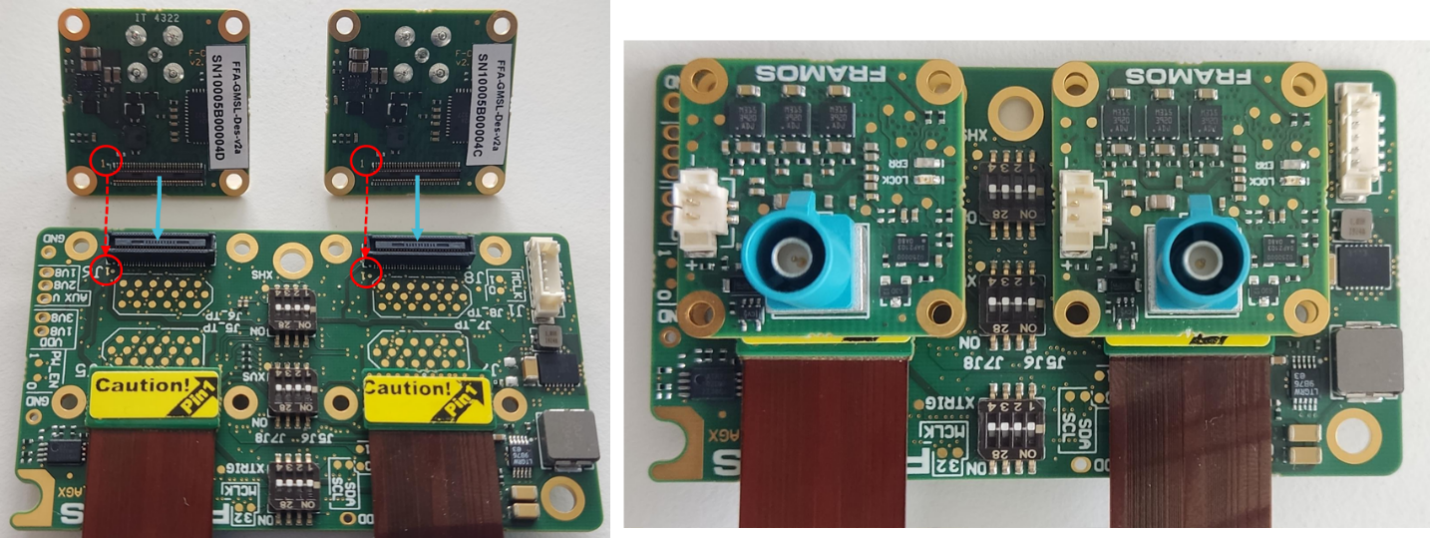
Using a flex cable connection.#
Step 3: Adding the GMSL Cable and Power Connection#
GMSL Cable Connection: Insert the GMSL cable between the FFA-GMSL-Ser-V2A and FFA-GMSL-Des-V2A to establish data transmission pathways.
Power Connection: Attach the power connector to the FFA-GMSL-Des-V2A.
Important
Do not switch the power supply on yet. This prevents potential electrical damage during setup.
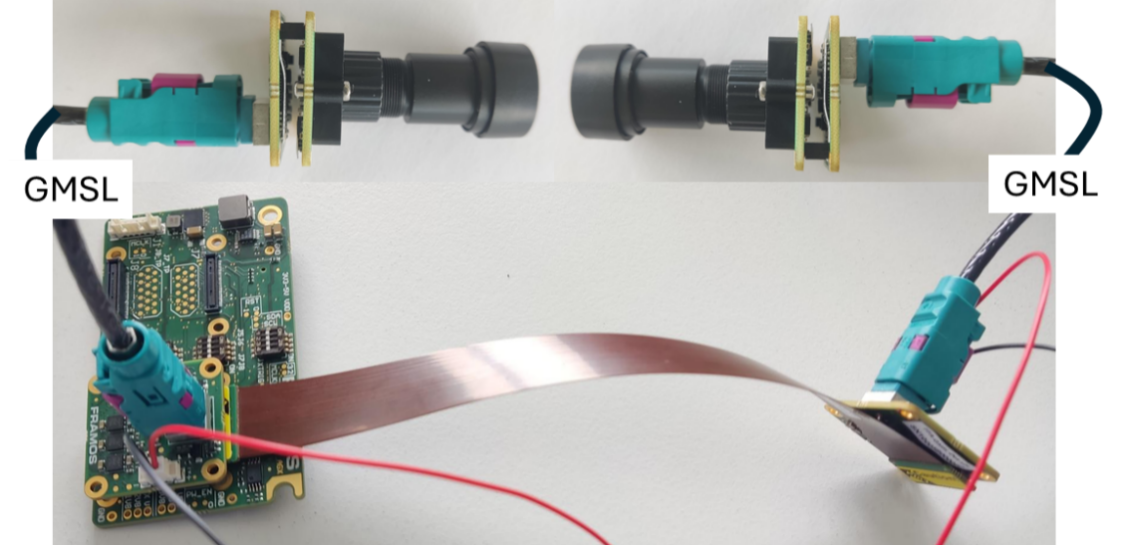
Adding the GMSL cable and power connection.#
Caution
Incorrect cable or connector orientation can lead to permanent damage to the hardware.
Always double-check alignment before making connections.
Ensure the power supply is off while making connections to avoid electrical issues.
Scenario 5: No Cable Connection (Optional)#
Context:
Direct connection of the FSM:GO module to the FPA-4.A/AGX is possible through connectors J6 and J8. This option is suitable for applications where minimal cabling is preferable.
Step 1: Preparing for Connection#
- Optional Cabling: If you need to use connectors J5 or J7, connect
the FSM:GO modules to these connectors before mounting other modules on J6 or J8, as these connectors will not be accessible afterward.
- Choose Connector: Decide whether to connect directly to J6 or J8
based on your configuration and accessibility.
Step 2: Direct Connection to FPA-4.A/AGX#
Connector Selection: Attach the FSM:GO module directly to either the J6 or J8 connector on the FPA-4.A/AGX.
Orientation Check: Ensure correct alignment of the 60-pin PixelMate connectors by matching pin 1 on both the FSM:GO module and the FPA-4.A/AGX connector.
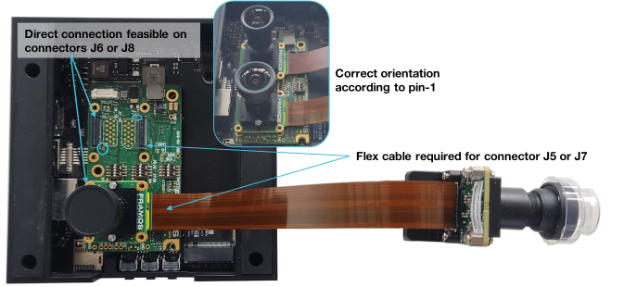
Direct connection to the FPA-4.A/AGX.#
Caution
Incorrect cable or connector orientation can lead to permanent damage to the hardware. Always double-check alignment before making connections.
Ensure the power supply is off while making connections to avoid any electrical issues.
Software Installation#
To set up your Framos camera module on your NVIDIA Jetson AGX Xavier/Orin devkit, all required drivers, device tree overlays, and installation instructions are provided in the official Framos GitHub repositories:
This repository contains:
Device tree overlays for supported image sensor modules
Installation scripts to simplify setup
Configuration examples for different use cases
Make sure to review the Release Notes in the GitHub repository’s README.md file (available on the latest release branch) to verify that your specific sensor module is supported before proceeding with the installation.
This repository is essential for enabling camera functionality via libcamera.
It includes:
Libcamera integration for Framos sensor modules
ISP (Image Signal Processor) pipeline support
Necessary configuration for capturing images and video using standard tools
Without this component, camera and ISP functionality will not work.
For the most up-to-date guidance and sensor compatibility, always refer to the repositories above.